Cloud ASHS Command-Line Tutorial
This tutorial assumes that you are using the ASHS-PMC atlas. Make sure that your MRI data is compatible with this atlas. The procedure is nearly identical for other ASHS atlases based on the combination of T2-weighted and T1-weighted MRI.
1. Create an ITK-SNAP workspace
To send your images to the cloud, you need to create an ITK-SNAP workspace that contains the T2-weighted and T1-weighted images. Here we create the workspace using command-line tools. You can also create the workspace using the ITK-SNAP GUI.
We assume that your MRI scans are named t2_oblique.nii and t1_wholebrain.nii and that these files are in the current directory.
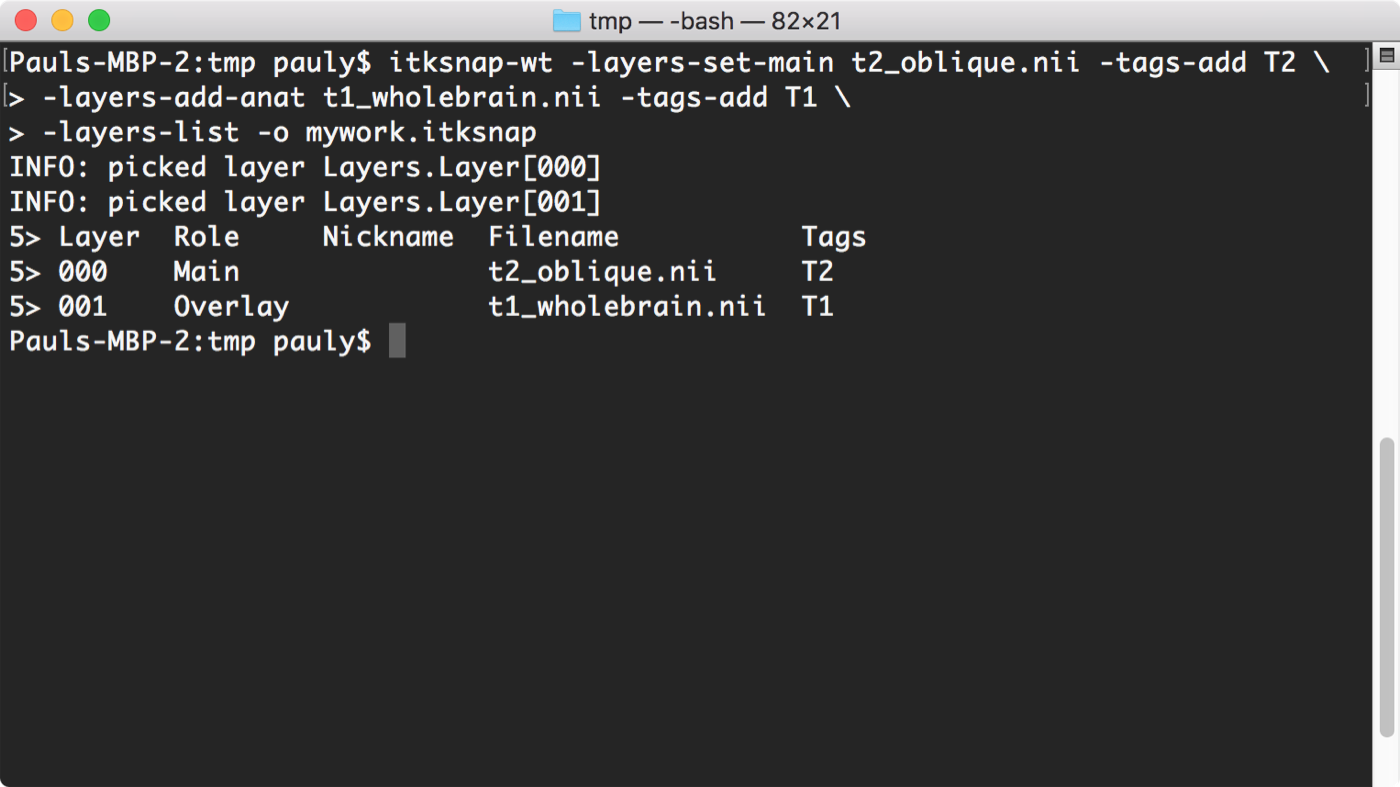
Enter the following command to create a workspace containing these files:
itksnap-wt -layers-set-main t2_oblique.nii -tags-add T2-MRI \
           -layers-add-anat t1_wholebrain.nii -tags-add T1-MRI \
           -layers-list -o mywork.itksnap
This command adds the T2 image to a blank workspace and assigns it the tag "T2-MRI", then adds the T1 image as an additional image and assigns it the tag "T1-MRI", prints out the contents of the workspace, and finally saves the workspace to a file called mywork.itksnap.
2. Obtain a login token for ITK-SNAP DSS
Before you can send tasks to the Distributed Segmentation Service (DSS), you need to authenticate. First, enter this command:
Then follow the link printed on the command line, log in using your Google account, and paste the token from the web page back into the command-line prompt.
3. Create a ticket for Cloud ASHS
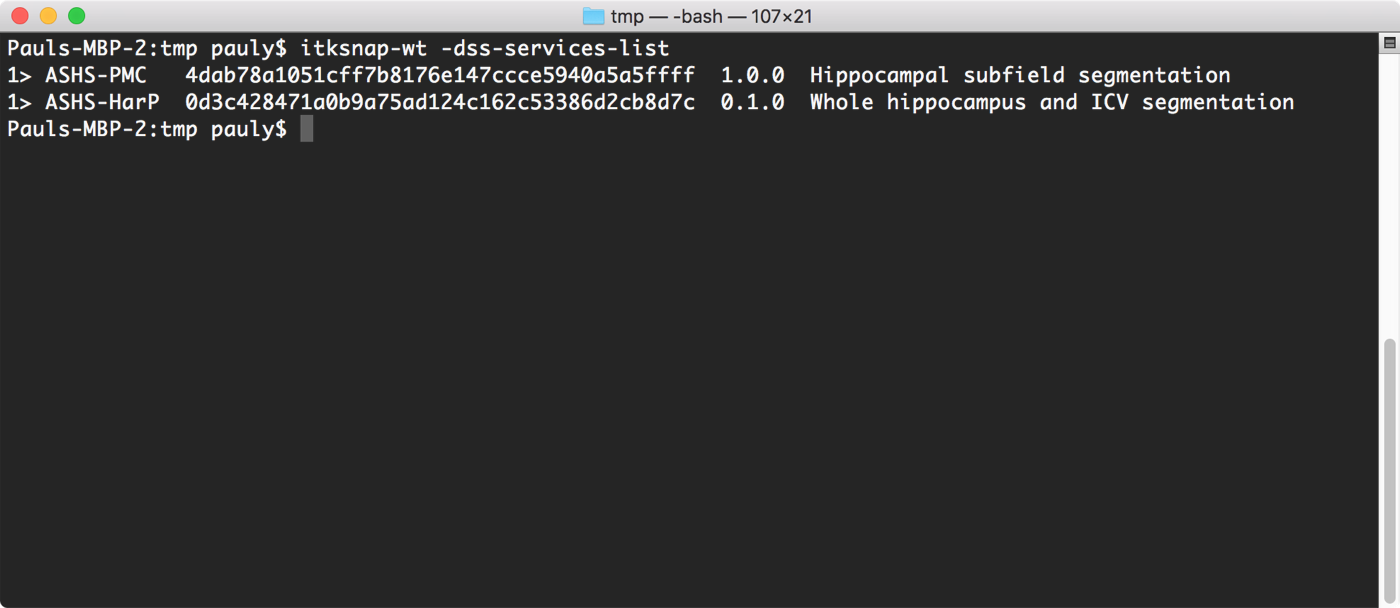
Run the command below to list the services currently available on the cloud:
The listing of the services (see figure) includes the service name, version, description, and a unique code in the second column that identifies each service. Select and copy the code for the ASHS-PMC service (if there are multiple versions, choose the latest one).
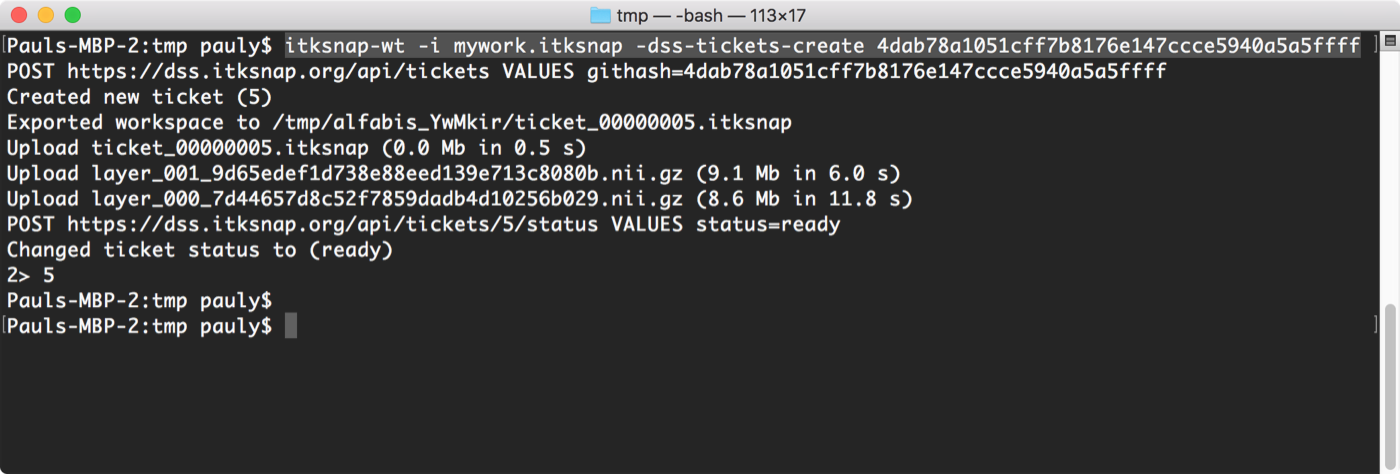
The following command sends the workspace to the cloud and creates a numbered "ticket". In place of [service_code], paste the unique code of the ASHS-PMC service.
- It may take a minute or two for the workspace to be uploaded to the server
- If successful, the number of the ticket will be printed after the
2>prompt
4. Monitor ticket status
Once a ticket is created, the easiest way to monitor its status is with the following command:
- This command does not return until the ticket has finished running.
- If you want the command to return immediately, enter
0after the ticket ID. - You can always interrupt the command with Ctrl+C. Doing so does not interrupt the processing of your ticket, only the command that monitors progress.
- If you want the command to return immediately, enter
- The command shows log messages and links to image attachments that you can view to see intermediate ASHS results
- You can submit additional tickets while a ticket is being processed

-dss-tickets-wait command.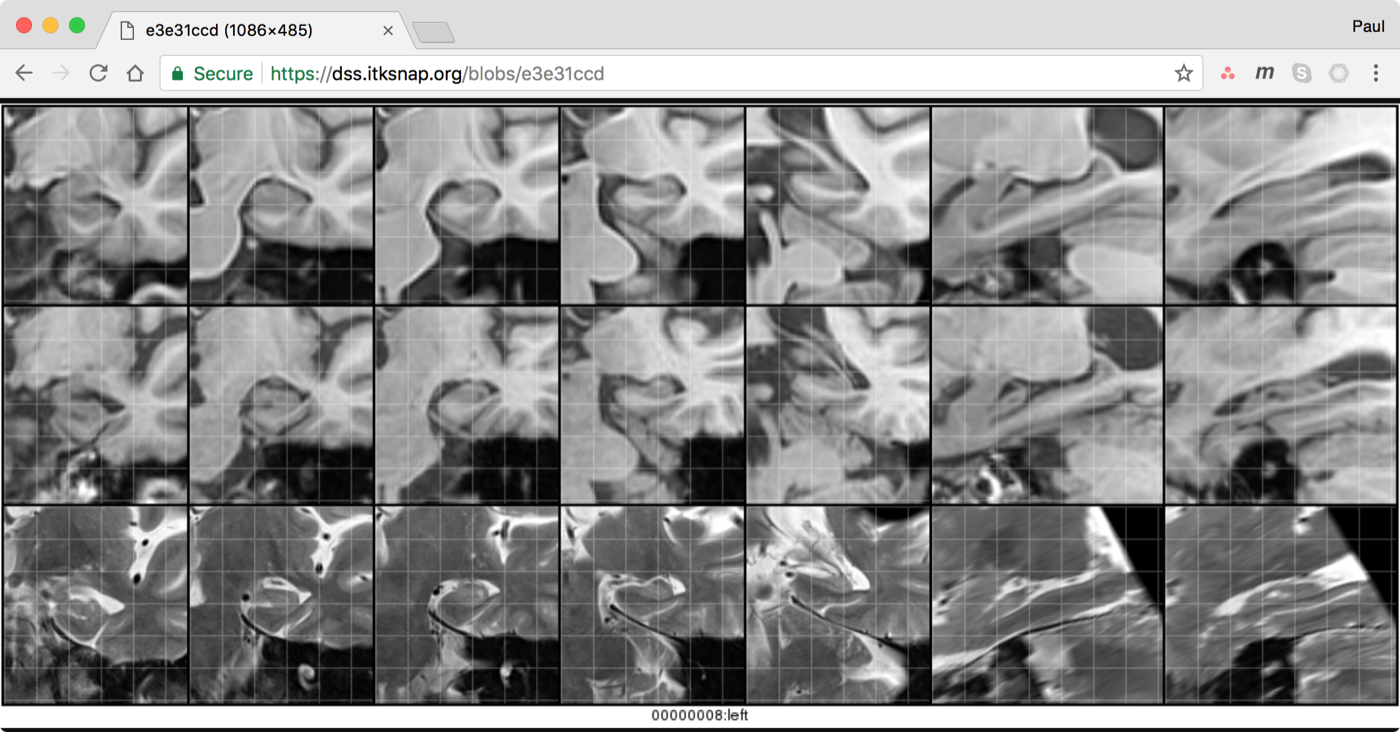
5. Download ASHS segmentation results
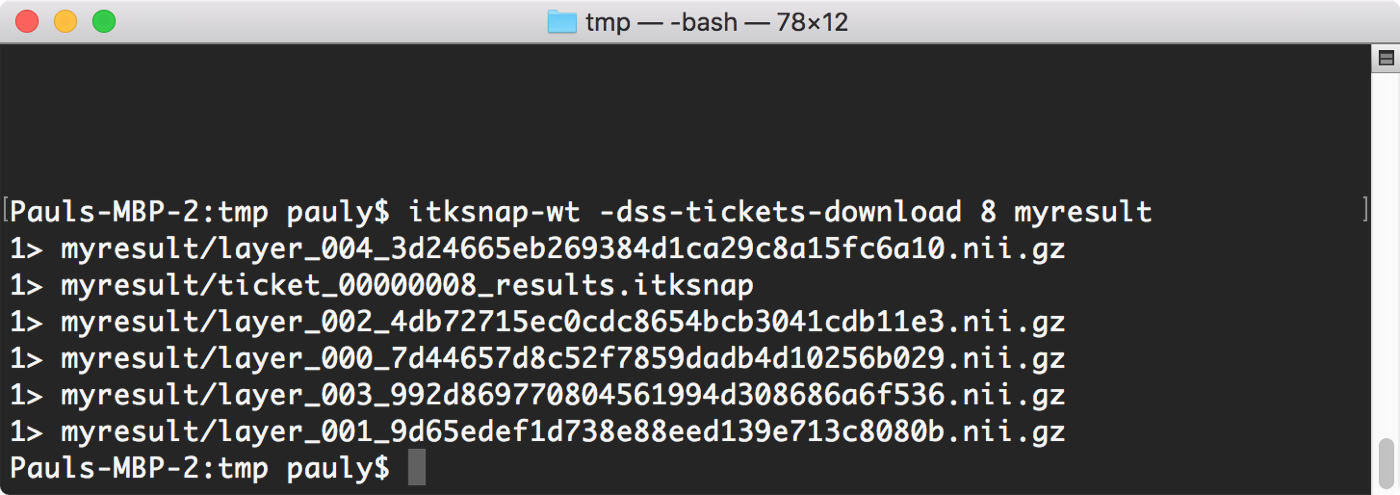
Once a ticket completes successfully, you can download the results as an ITK-SNAP workspace. Specify the directory where the new workspace should be placed:
The workspace is saved as a ticket_XXXX.itksnap file that can be opened in the ITK-SNAP GUI.
6. Examine ASHS results
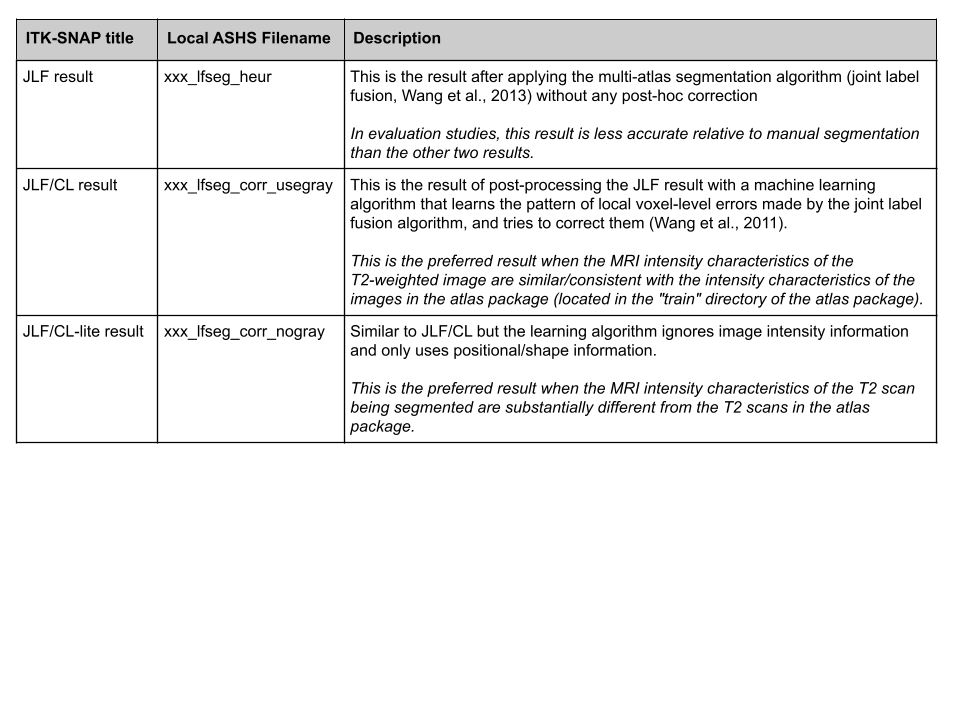
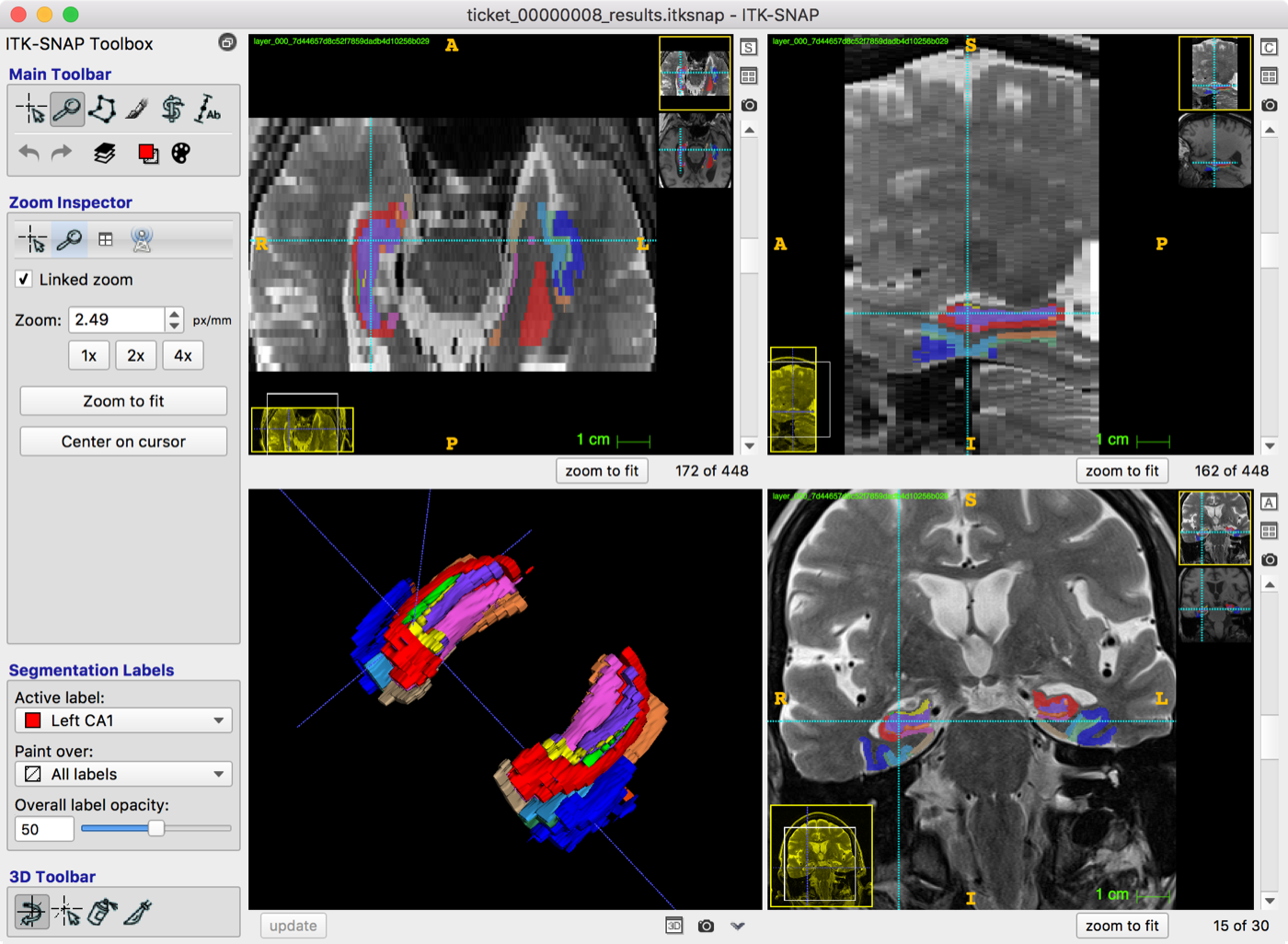
The easiest way to examine ASHS results is to load the downloaded workspace into ITK-SNAP. The workspace contains multiple segmentation layers, which you can access using the Layer Inspector in ITK-SNAP. See the table below for an explanation.
See the equivalent page for HyperASHS.